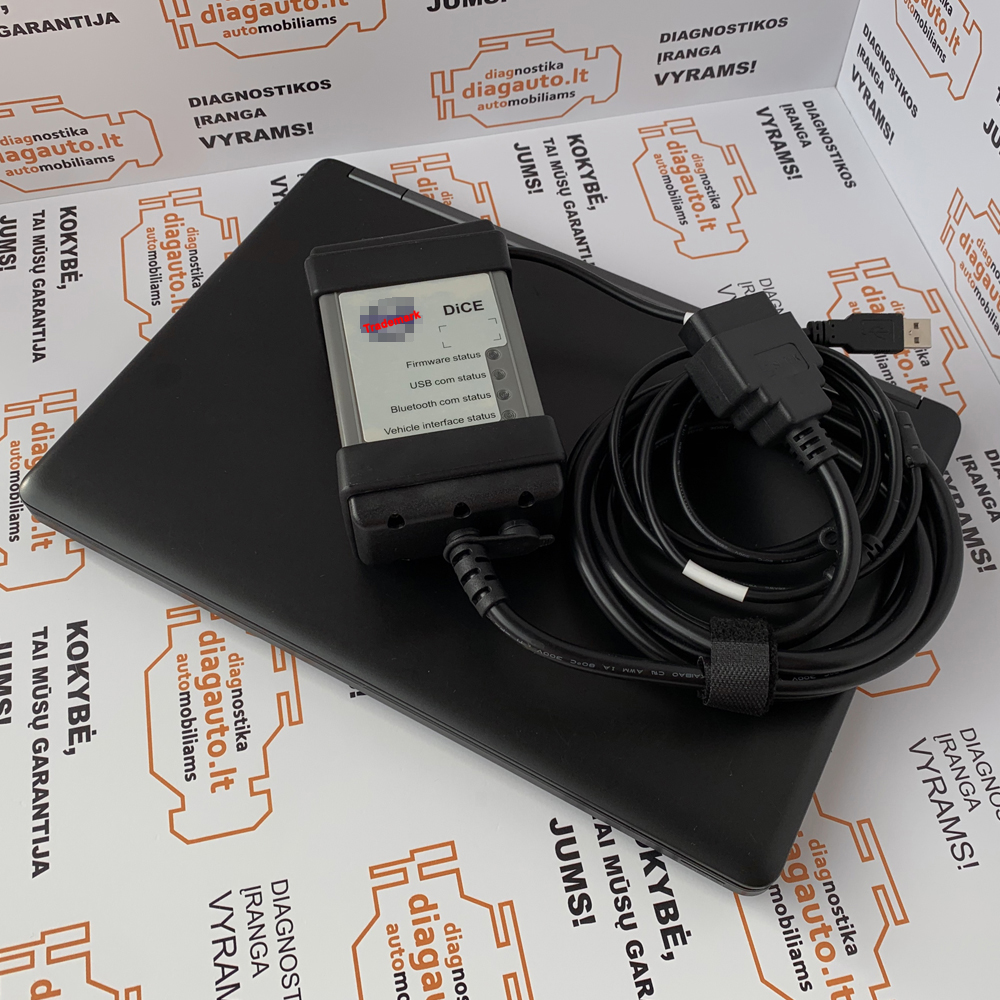
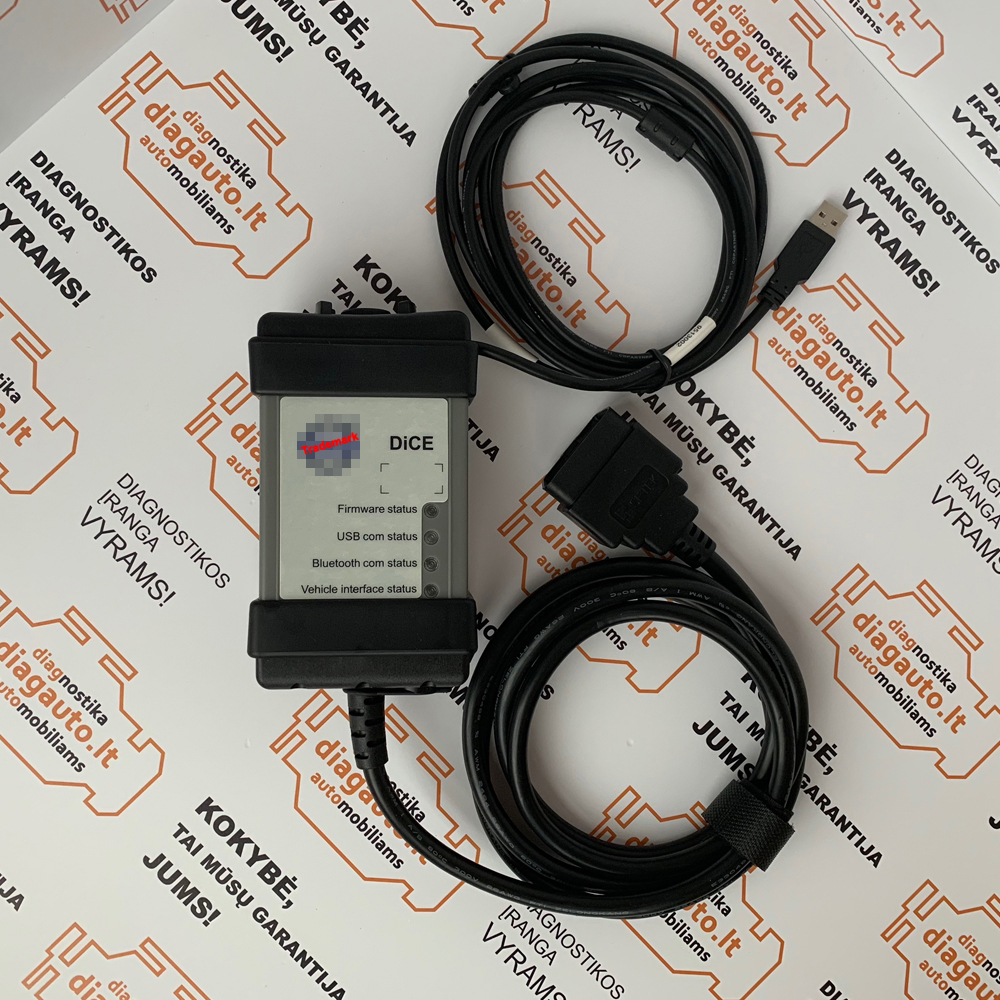
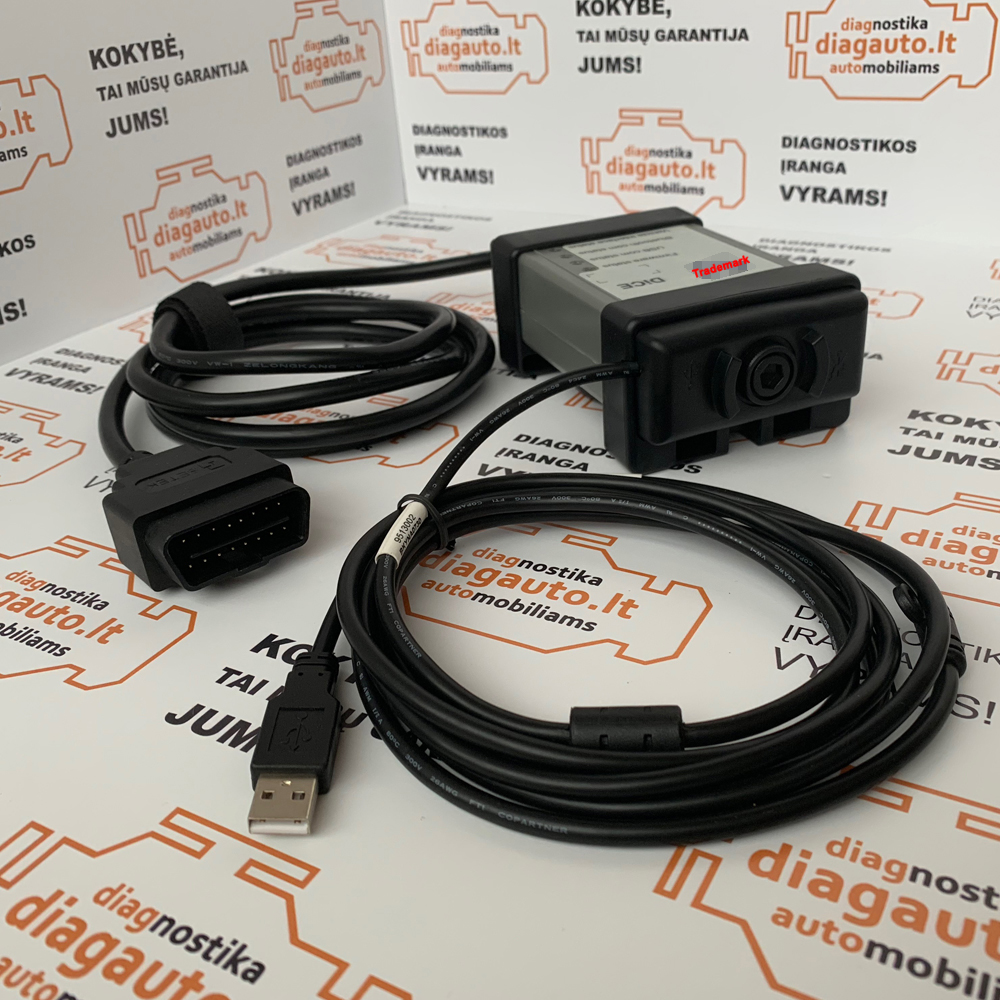
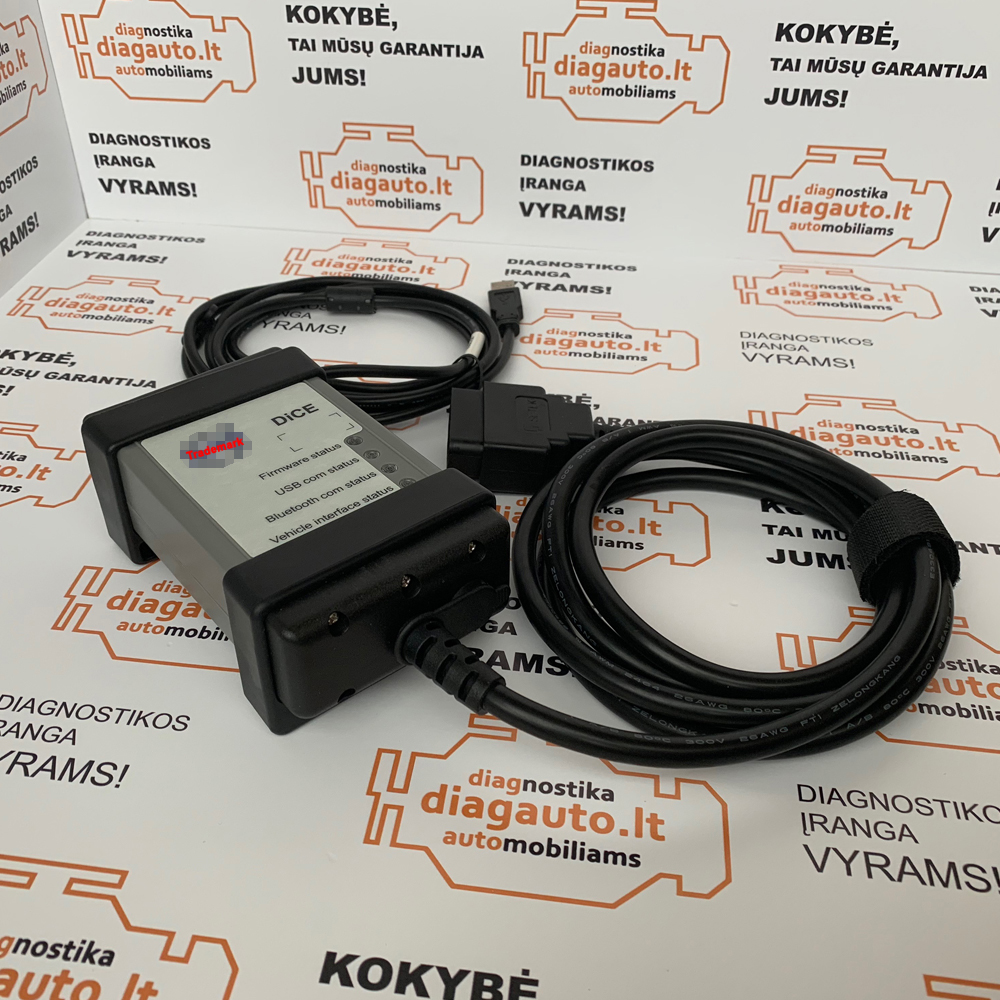
Description
Multi-Language: English, Russian, Japanese, Portuguese, Spanish, French, Croatian, Chinese
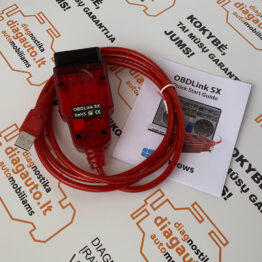
Connection: USB (Energy from OBD2)
Software: 2014D
Operating systems: Windows Professional 7 32/64 bit
System updates: Not available
Internet connections: Available
Warranty: 12 months
Functions:
- Administration- General information, design and function;
- Standard components, service materials and consumables.
- General information (among other things, control modules, SRS, general safety) as well as service and maintenance;
- Engine with mounting and equipment;
- Electrical system;
- Power transmission;
- Brakes;
- Suspension and steering;
- Springs, shock absorbers and wheels;
- Body and interior- among other things, diagnostics, design and function, repair and spare part information;
- Other- special vehicles, eg ambulance, police cars. Components that deviate from standard.
Installation guide:
Requirements:
- VIDA DICE 2014D DVD/ISO file;
- Internet explorer 9+ (Click here to download);
- .Net Framework 3.5 (Important 3.5 version needed! (Click here to download .NET FRAMEWORK 3.5 ) , (Click here to check .NET FRAMEWORK version);
- Windows Professional 7 32/64 bit;
- 4GB RAM, 40GB free space.
Installation:
1. Insert the VIDA 2014D DVD on the player, or mount the ISO image;
2. Double click the DVD drive on the “My Computer” to run the Setup Wizard;
3. After the loading, select “VIDA All-in-one” and press Next;
4. Select the desired language and press “Next”;
5. Press “Next” on the installation folder selection and then “Yes” on the License Agreement screen;
6. Wait until the installation process is completed, this will take a lot of time about 45mins;
7. On the VIDA configuration screen click Save (1). A small window will appear click Close (2). Then click again Close (3) on the configuration screen
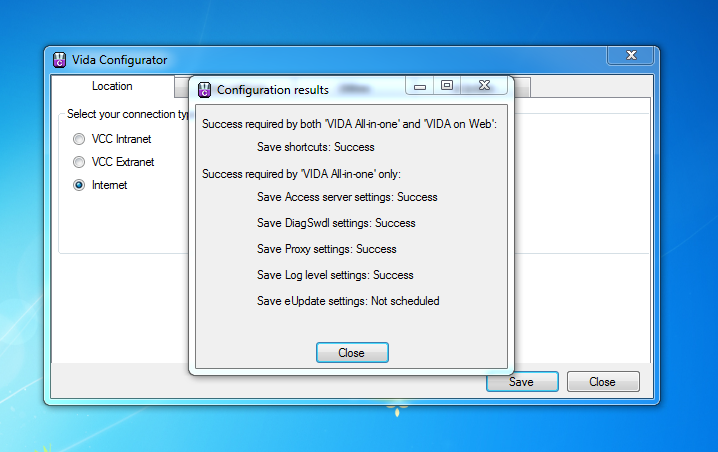
8. In the end select “No, I will restart my computer later”;
9. Extract the downloaded VIDA 2014D Patch rar file into a new folder;
10. Open the folder and execute the “VOLVO_VIDA_2014D” file;
11. In the window that will open, click Install;
12. After the installation is completed, restart your computer;
13. After your computer restart Run Volvo VIDA 2014D, wait until this icon on the Windows System Tray turns green:
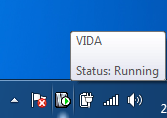
14. When it’s green, double click on the “VIDA All-In-One” icon that’s on your desktop;
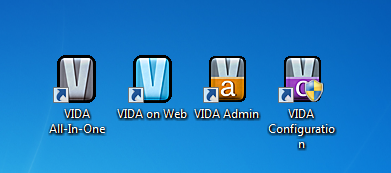
15. The Internet Explorer will open with the Volvo VIDA 2014D Login Screen. Just fill “1” in the username field and press “LOG IN”;
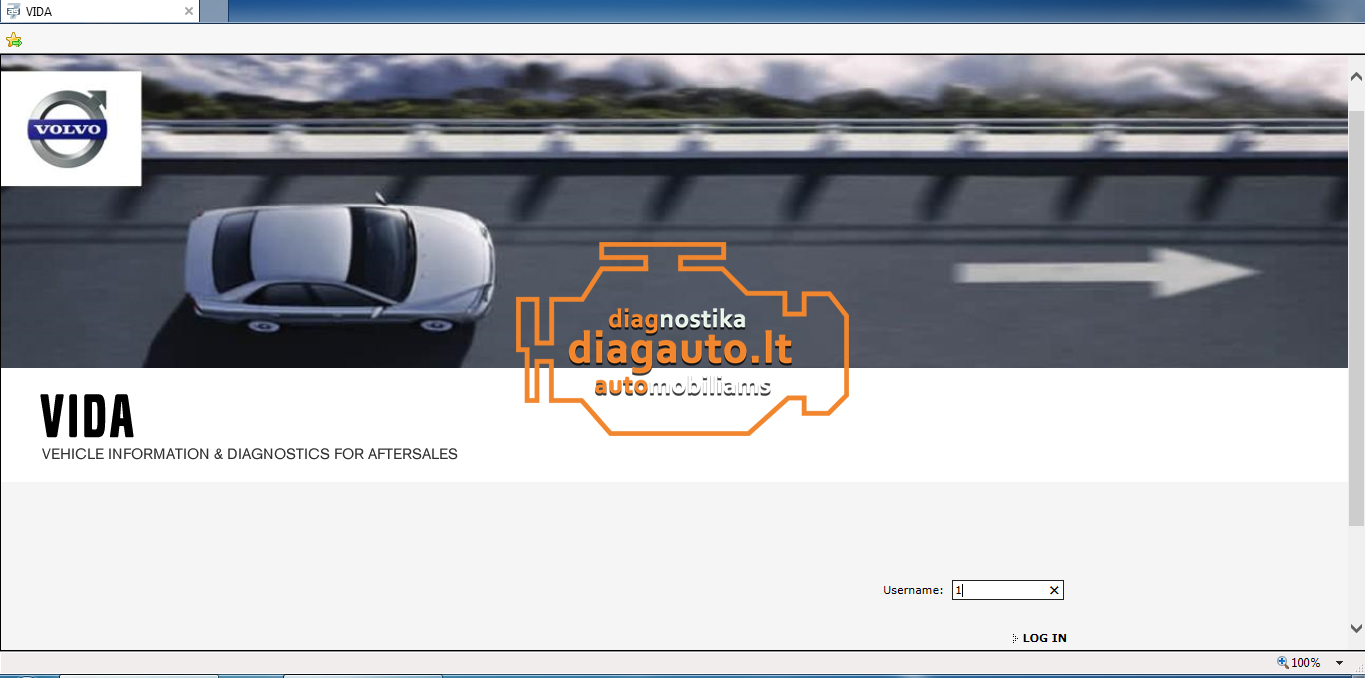
16. And you’re set! You can now start exploring Volvo VIDA software!